Ship & extend
Files, git & deploy
What is generated, what is yours, and how a sitereal project ships.
A sitereal project is a repository. Everything the builder does ends up as a file change you can read, review and revert — which means the way you ship it is the way you already ship Astro sites.
Files
Files browses the whole project: one folder at a time, with a breadcrumb and Root always a click away, plus a search that matches paths across the project. Files open in the editor with syntax coloring; you can create, rename and delete.
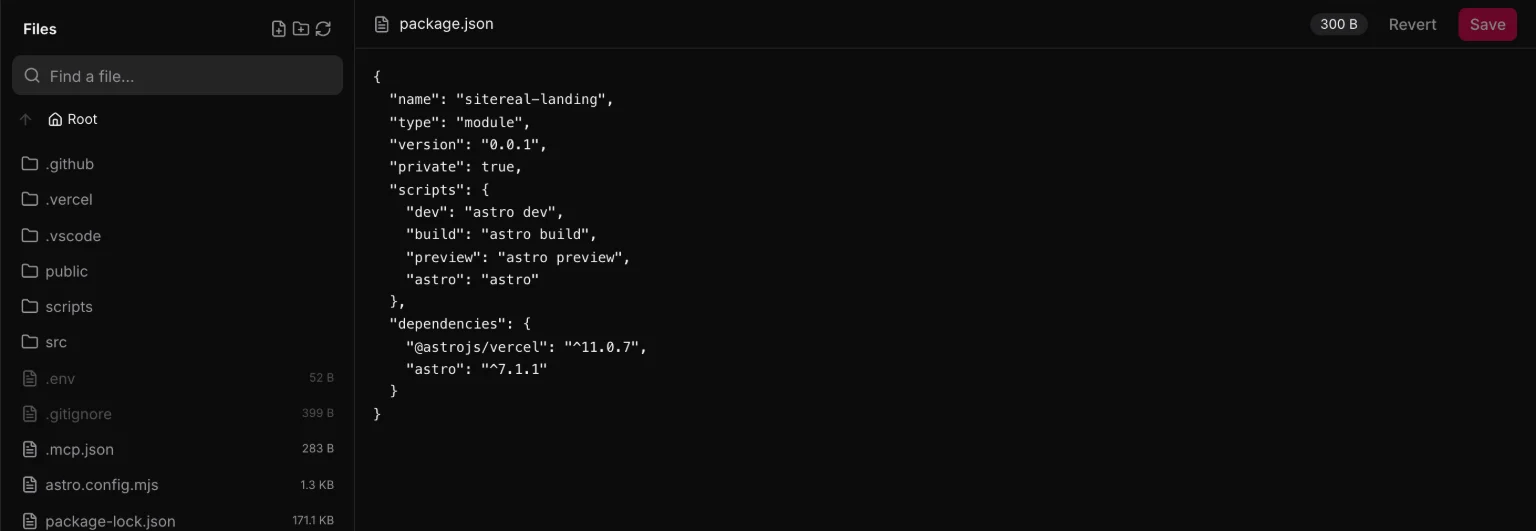
Generated files are marked. They open read-only-ish — you can look, but the next save overwrites them, so edit them through the tool that owns them:
| Path | Owned by |
|---|---|
src/pages/<route>.astro | the page |
src/components/<Name>.astro | the component |
src/styles/generated/** | the design system, global styles, pages, templates, snippets |
public/scripts/{nav,motion,overlay}.js | the runtimes |
src/data/<slug>.json | a content type |
public/robots.txt, public/sitemap.xml | SEO settings, while marked as generated |
site.sitereal | the engine — go through the tools |
Everything else is yours: src/layouts/PlainBase.astro, anything you write by hand, your own components, astro.config.mjs, package.json.
Version control
The everyday four are main and in the top bar, and Settings → Repository:
- Branches — see local and remote, switch, create.
- Commit — stage everything and commit with a message.
- Pull — fetch and bring the current branch up to date.
- Push — stage, commit and push in one action.
Every project gets a history of its own when it is created. That is not a nicety: it is what keeps a project made inside another folder with a history from quietly committing into that one.
GitHub
Connect an account under Settings → Repository and you can create a repository, pick an existing one, or paste a remote URL. Only the pointer to the remote changes — disconnecting leaves your history and your files exactly where they are.
What a good diff looks like
Because site.sitereal is written with a stable key order, a one-field change is a one-line diff rather than a reshuffle of the file. And because pages emit as ordinary .astro, a pull request shows the actual markup that changed:
- <h1 builder-data-element="heading" class="hero__title">Hello</h1>
+ <h1 builder-data-element="heading" class="hero__title">Hello, world</h1>
Reviewers do not need sitereal to review a sitereal change.
Publishing
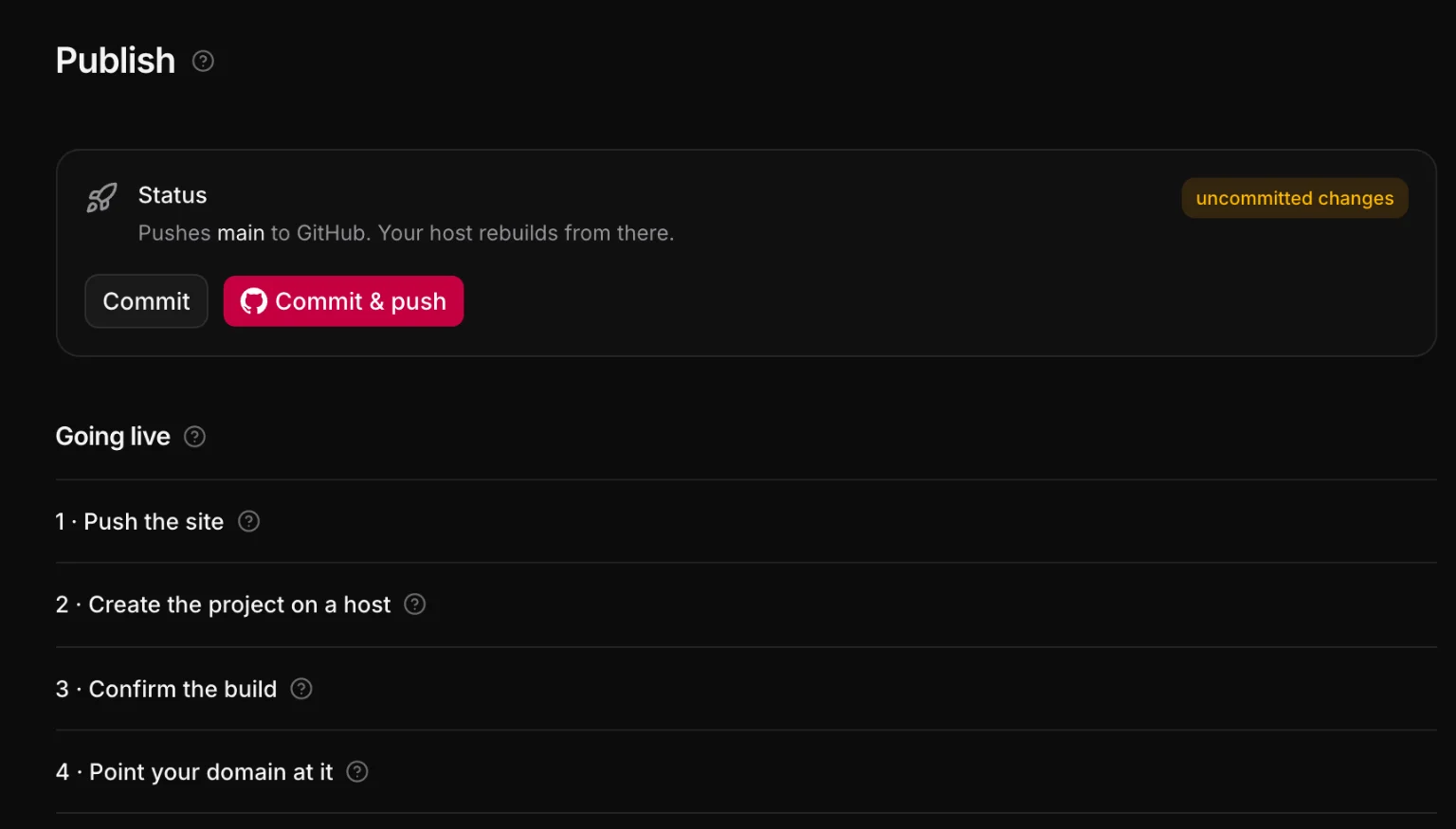
Publishing is Settings → Publish. It commits what you changed and pushes it to the repository you connected under Settings → Repository; a host watching that repository — Netlify, Vercel, Cloudflare Pages — rebuilds the site on every push. The first time, the same screen walks you through connecting a host and tells you what to enter there.
To look at the site before it goes out, press ▶ in the top bar: the page opens in your browser exactly as it will ship.
If your project needs SSR, add the adapter Astro provides and configure it in astro.config.mjs. sitereal does not sit in that decision — it writes pages, Astro decides how they are rendered.
Commit site.sitereal. It is what makes the project editable on another machine — and it is the one file that has to travel with the repo for the builder to open it as a project.
Handing over to a host that cannot build
Some hosting does not build anything. A cPanel or Plesk plan bought for WordPress has an FTP login, a public_html and no Node anywhere near it — and replacing that site should not mean moving the client to another host first. Settings → Publish → Export static site builds the project here and hands back a zip of dist/: the finished HTML, CSS, JavaScript, images and fonts. No PHP, no database.
One file in the archive is not part of the build. .htaccess replaces the one WordPress left behind — that file sends every address to index.php, so leaving it in place means the homepage works and nothing else does. Ours carries the 404 document, gzip, cache headers for the hashed assets and the project's own redirects (Settings → Redirects). Every directive is wrapped in <IfModule>, so a host missing a module skips the block instead of answering 500.
The archive holds no instructions of its own. This is the procedure:
- Back up the whole hosting first — files and database. This is the step nobody regrets.
- Remove the WordPress from the web root:
wp-admin/,wp-includes/,wp-content/,wp-*.php,xmlrpc.phpand the old.htaccess. Leaving them costs nothing in speed but leaves an unpatched WordPress on the internet, which is how sites get taken over after they are replaced. - Switch on hidden files before you upload.
.htaccessbegins with a dot, so the macOS Finder hides it (⇧⌘.toggles it) and so do most FTP clients — FileZilla under Server, Cyberduck under View, the Plesk file manager under its settings gear. This is the step that gets missed, and the site looks broken in a way that has nothing to do with the build. - Upload the contents of the archive — not the folder itself — into
public_html/. When it is right,public_html/index.htmlexists andpublic_html/.htaccessbeside it. - Uncomment the HTTPS block at the end of
.htaccessonce the certificate is installed andhttps://loads in a browser. It ships commented out on purpose: forcing HTTPS before the certificate exists takes the site down rather than securing it.
One check says whether the .htaccess is being read at all. Open an address the site does not have — example.com/no-such-page/ — in your browser. You should see your own 404 page; the hosting company’s default page means the file is not being read.
Every page except the homepage returns 404 → the old WordPress .htaccess is still up there. Pages work but the 404 page and the redirects do not → yours never made it up (hidden files), or the host has AllowOverride switched off and has to turn it on.
Changing the site later is not editing these files. They are build output and the next export overwrites them: edit in sitereal and export again.