Getting started
The interface
The rail, the canvas, the tree, the panels — every surface of the app and what it edits.
One window, one project. This page names every part of it, so the rest of the documentation can point at things without explaining them again.
The top bar
| Control | What it does |
|---|---|
| Switch to another project, or go back to All Projects. | |
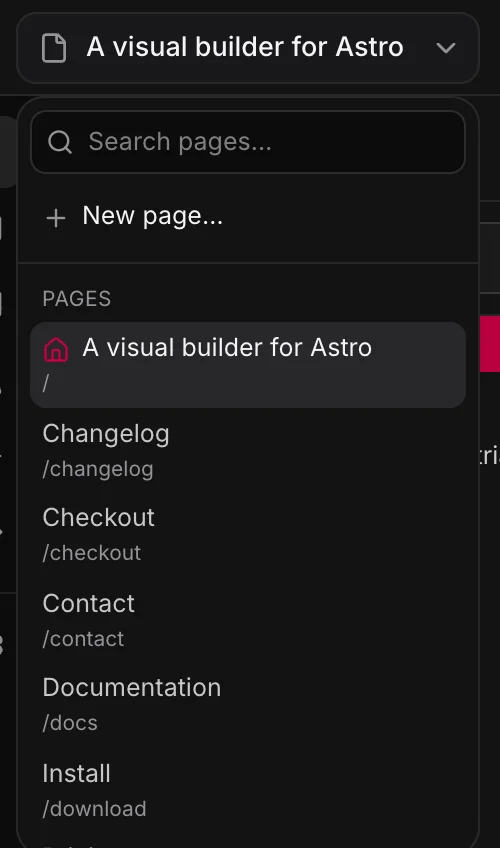
| Page | The page you are editing. Search your pages, jump to one, or start a new one. |
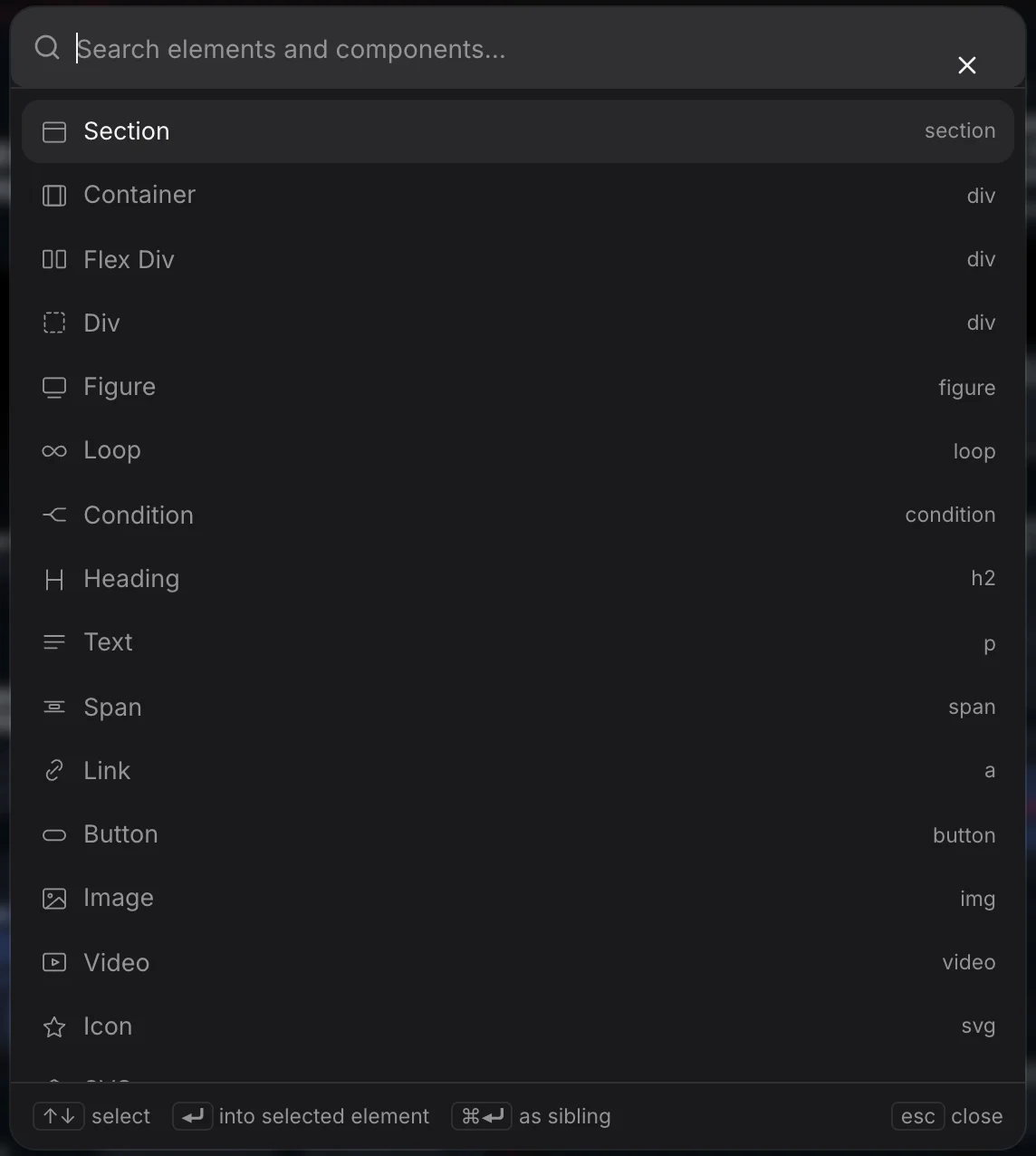
⌘E | Insert an element, one of your components, or a pattern. |
| Reload the canvas — the page as it arrives, animations from the top. | |
| main | The branch you are on. Opens Repository to switch, create or merge. |
| Lights up while an AI assistant is connected, and pulses while it edits. | |
| Undo and redo. Each page, component and template keeps its own history. | |
| Open this page in your browser, exactly as it will ship. | |
| Problems | Green while the browser can read every CSS rule and snippet. When something would be silently dropped it turns red and says what. |
| Export: commit and push to GitHub, or build a zip for hosting that only serves files. |
The rail
The column of icons on the far left switches what the window is showing.
| Opens | |
|---|---|
| Build | The page canvas — where you start. |
| Content | Content types and their entries: posts, projects, FAQs. |
| Media | Every image, video and file in the site, with alt text. |
| Design | The design system: colors, type, spacing, buttons and the rest, one screen each. |
| Styles | Your stylesheets, every selector in them, and your variables. |
| Snippets | Code added to pages by a rule — an analytics tag, a font preload. |
| Addons | Capabilities you switch on: forms, pop-ups, consent, carousel. |
| View | Which panels are showing, and whether loops show real data. |
| History | Every save: how the page looked, what changed, and a way back. |
| Files | The project’s real files. |
| Settings | This site: SEO, redirects, publishing, AI access, templates, components. |
The canvas
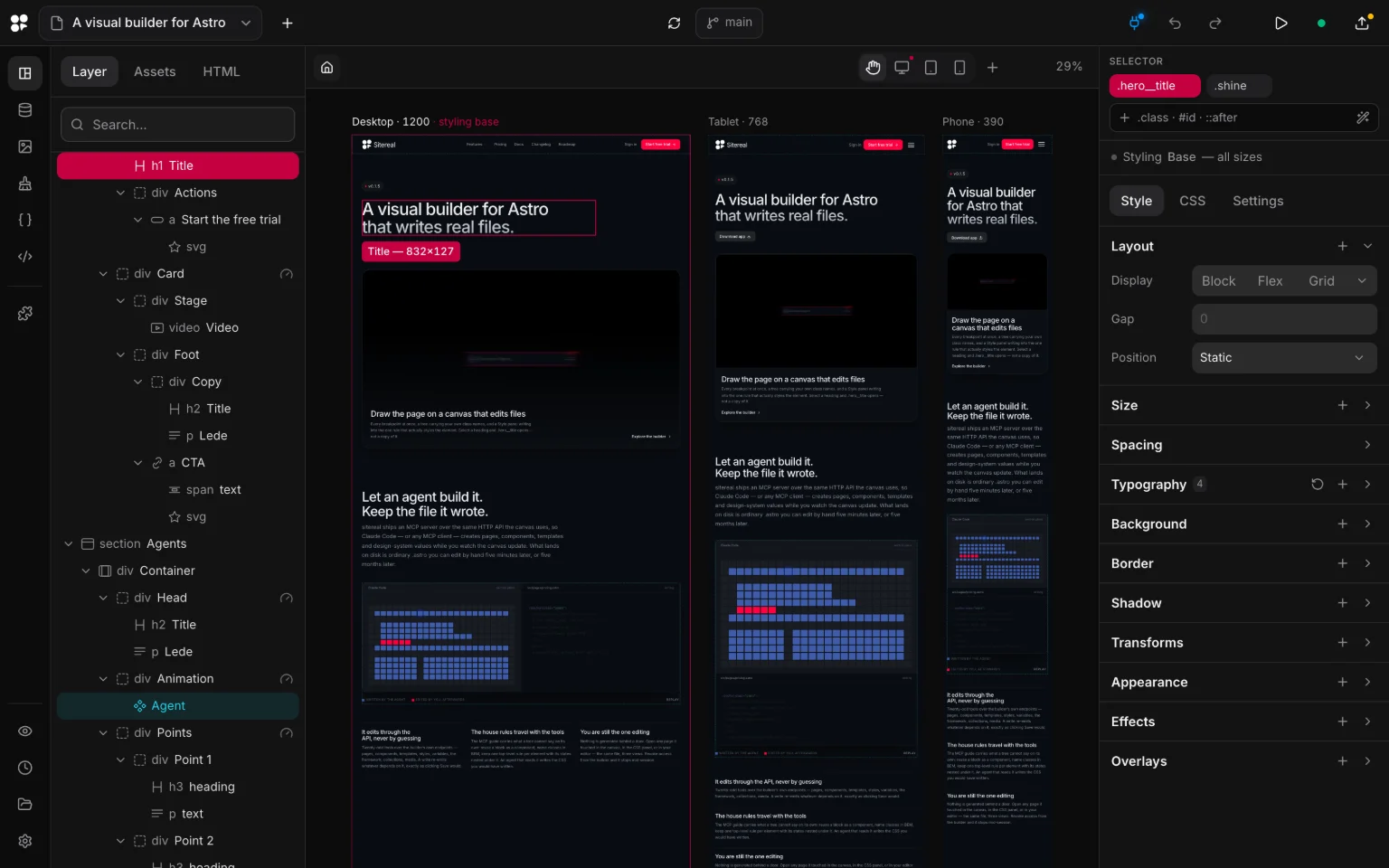
The canvas renders the page for real — your CSS, your fonts, your markup — with no build step. In it shows every breakpoint side by side, widest first; show one of them at its real size.
- Click selects; the ring is the element, and the label names it.
- Double-click edits text in place.
- Drag in the tree or on the canvas moves elements.
- The frame you work in is the breakpoint you are styling. A change made in the tablet frame lands in that breakpoint only.
- Drag a frame’s edge to see what happens between breakpoints. beside the devices adds a breakpoint of your own.
The left column
Three tabs: Layer is the page as a tree, Assets is everything the project owns — templates, components, stylesheets, snippets — and HTML is this page’s markup. Names in the tree matter: they are what class names are generated from and what the canvas label shows.
The panel
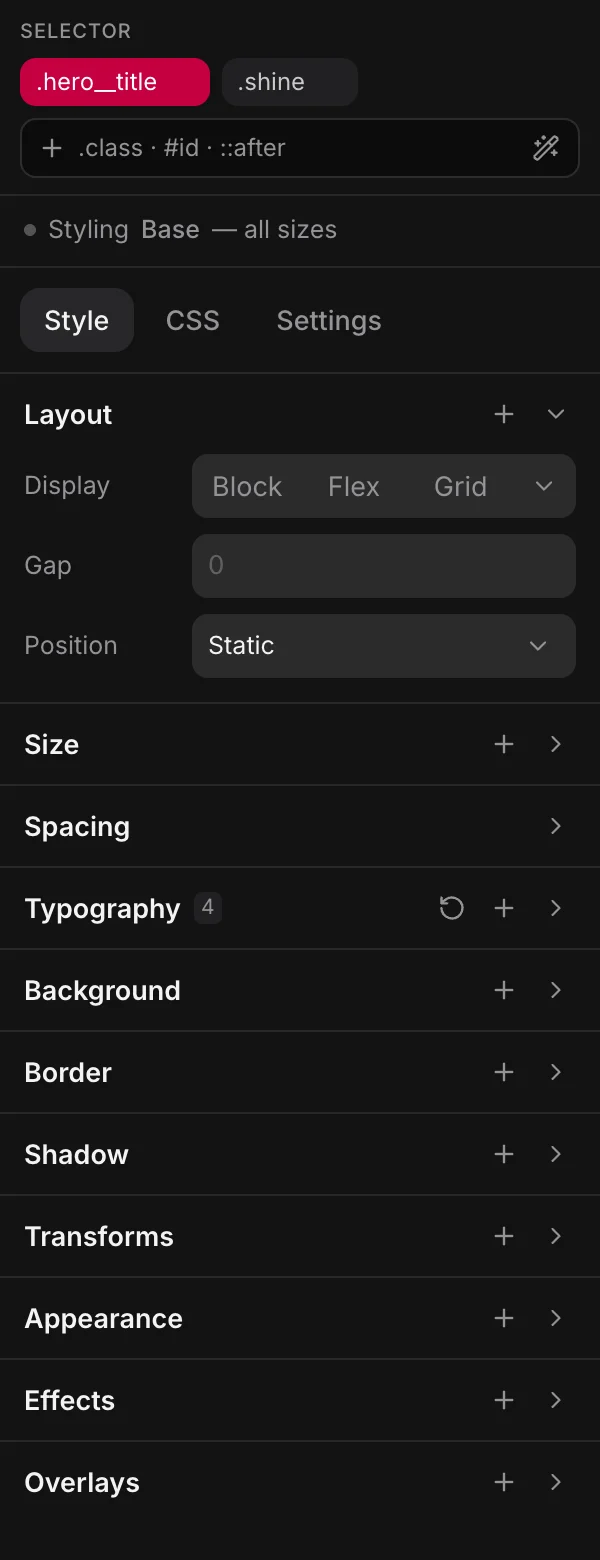
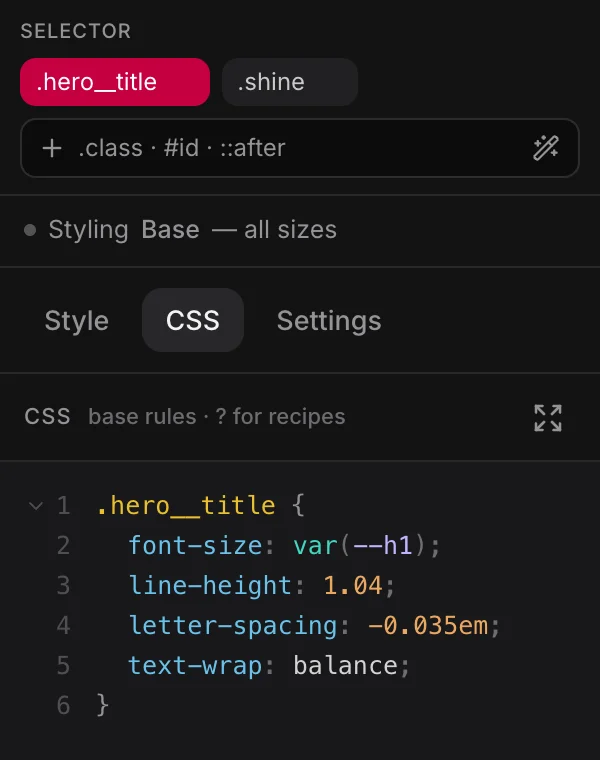
On the right, whatever is selected. At the top the selector says which CSS rule you are editing — click another class to switch. Under it, three tabs:
- Style — the rule as controls, in folds: Layout, Size, Spacing, Typography, Background, Border, Shadow, Transforms, Appearance, then Effects and Overlays. A closed fold shows how many values it holds.
- CSS — the same rule as text, with completion for properties, values and your own variables.
- Settings — the element itself: its tag, its text, its attributes, and whatever this kind of element can be asked (a link’s address, a video’s source, a menu’s breakpoint).
Keyboard
| Shortcut | Does |
|---|---|
⌘S | save the page |
⌘Z / ⇧⌘Z | undo / redo |
⌘D | duplicate the selected element |
⌘C / ⌘V | copy / paste an element |
Delete | delete the selected element |
Esc | deselect |
Shortcuts stay out of the way while you are typing in a field.
When an agent is working
If Claude Code is working on the project, the in the top bar lights up while it is connected and pulses while it edits, and the canvas keeps updating as pages are written. You can take over at any point — you are both editing the same files. See Agents & the MCP.